Learn how to use ListBanana
List in minutes, not hours. Each guide is simple, step by step and in its own area — and below you'll find the questions and answers to clear up any doubt.
📱 Create and publish your listing
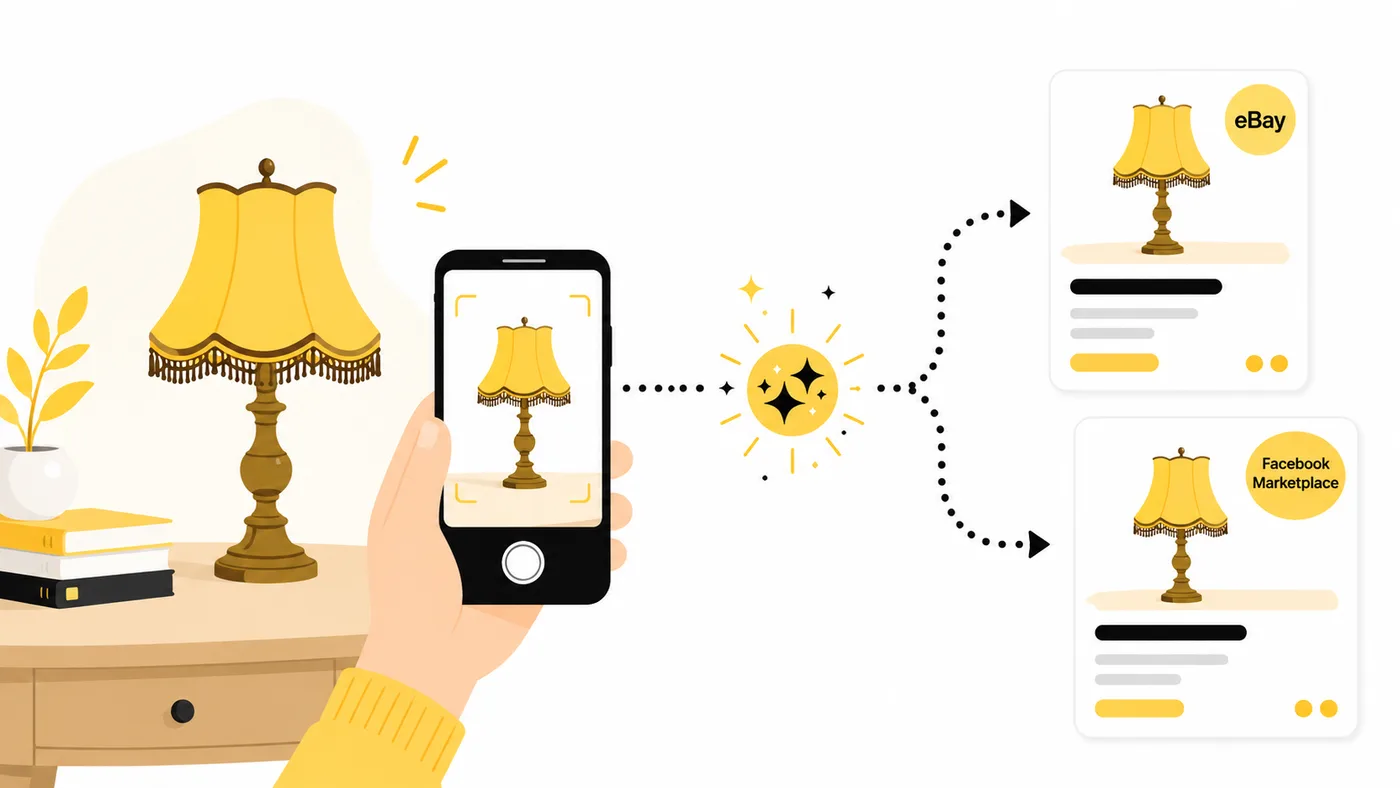
From one photo to your listing live on eBay — ListBanana does the heavy lifting and you approve everything.
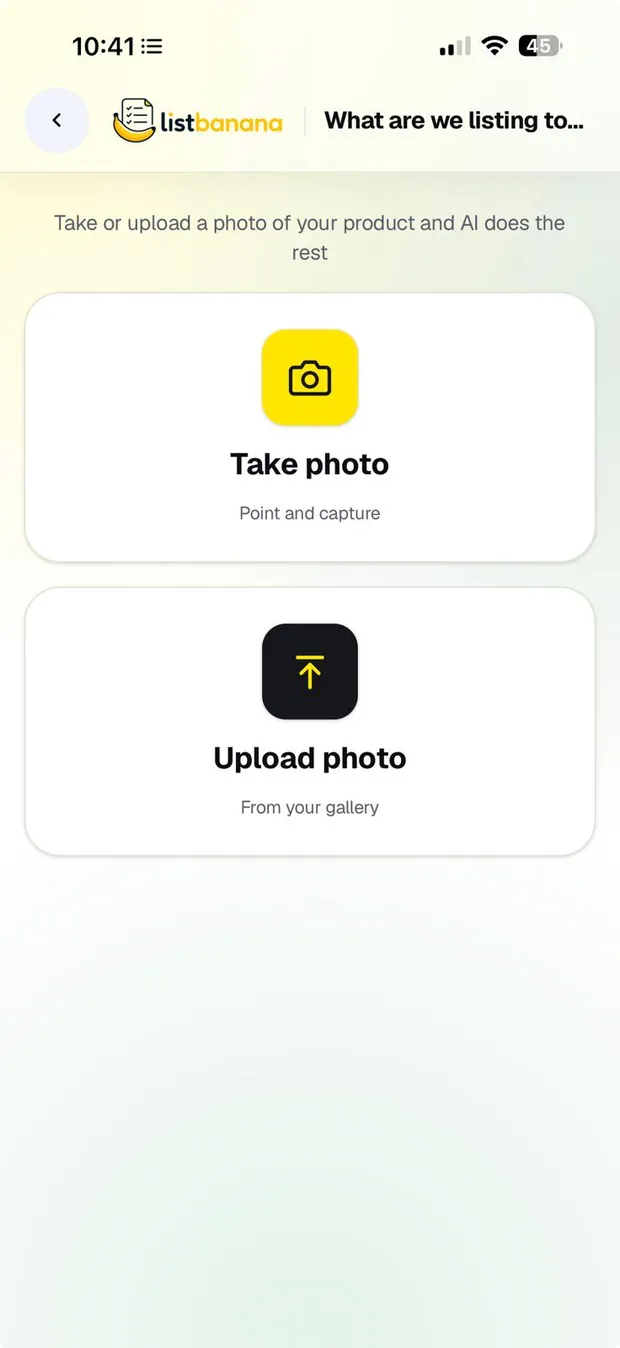
Take or upload a photo
Go to your dashboard and tap Add product. Then choose Take photo (point and capture) or Upload photo from your gallery. ONE photo is enough to start — you can add more later (8 is ideal).
ListBanana identifies your product
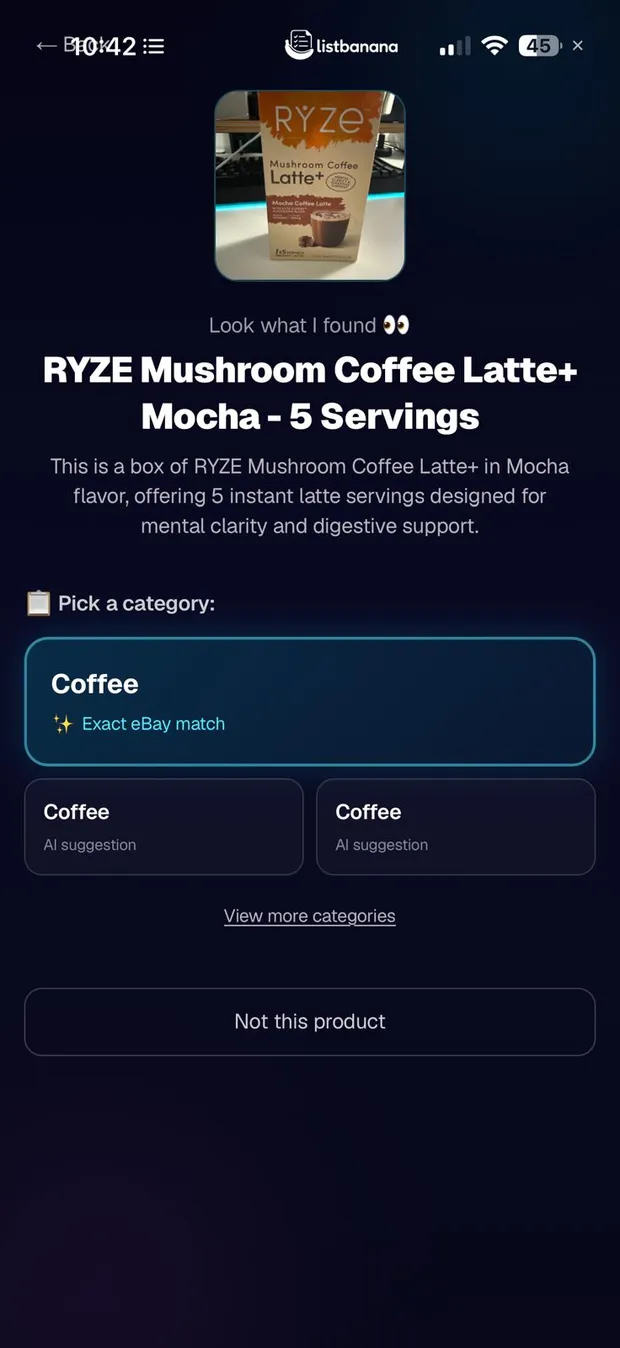
ListBanana looks at your photo, finds the product and shows you "Look what I found 👀" with the eBay categories that fit it best. It only takes a few seconds.
Pick the category — this is where your credit is used
Tap the right category (or View more categories if none fits). You'll see the notice "You're about to use 1 listing credit": by tapping Yes, continue you approve the listing and ListBanana generates it in full — title, description and item specifics — deducting 1 credit from your plan, whether you publish it or not.
Review and adjust anything you want
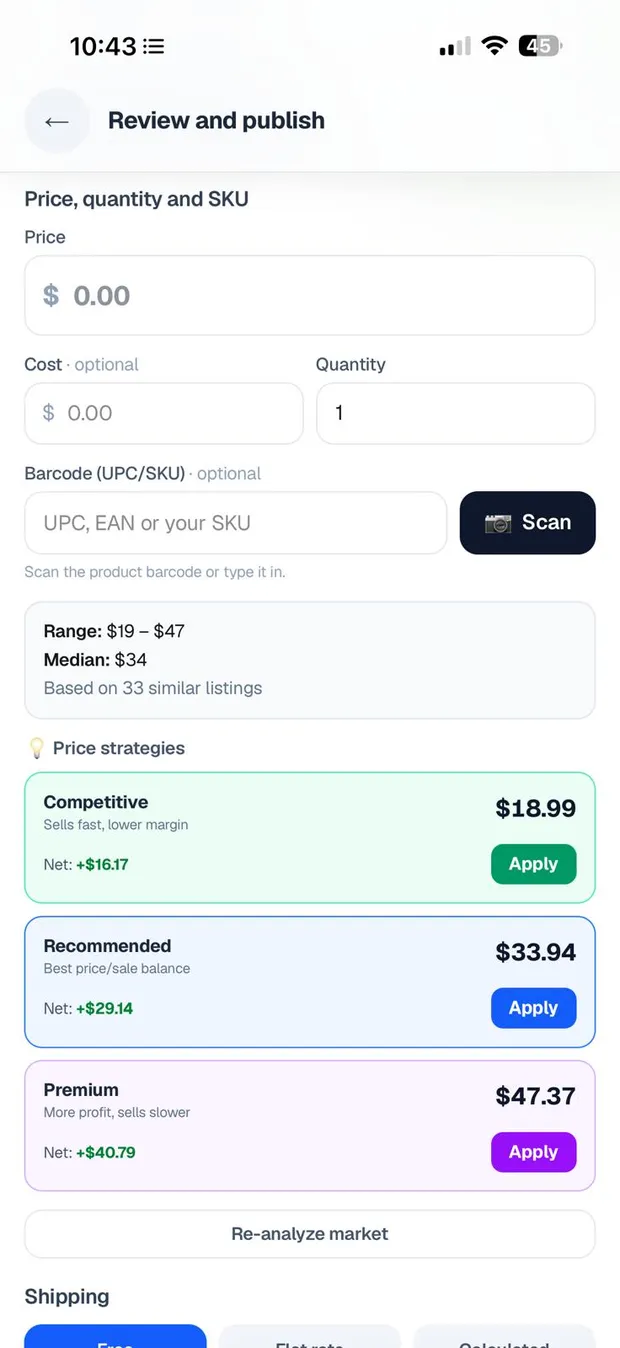
On the Review and publish screen you see everything ListBanana did for you. Set your price (Analyze market prices shows you real eBay data), review condition, photos and shipping, and use 📝 View / edit listing details to change title, description or category if needed.
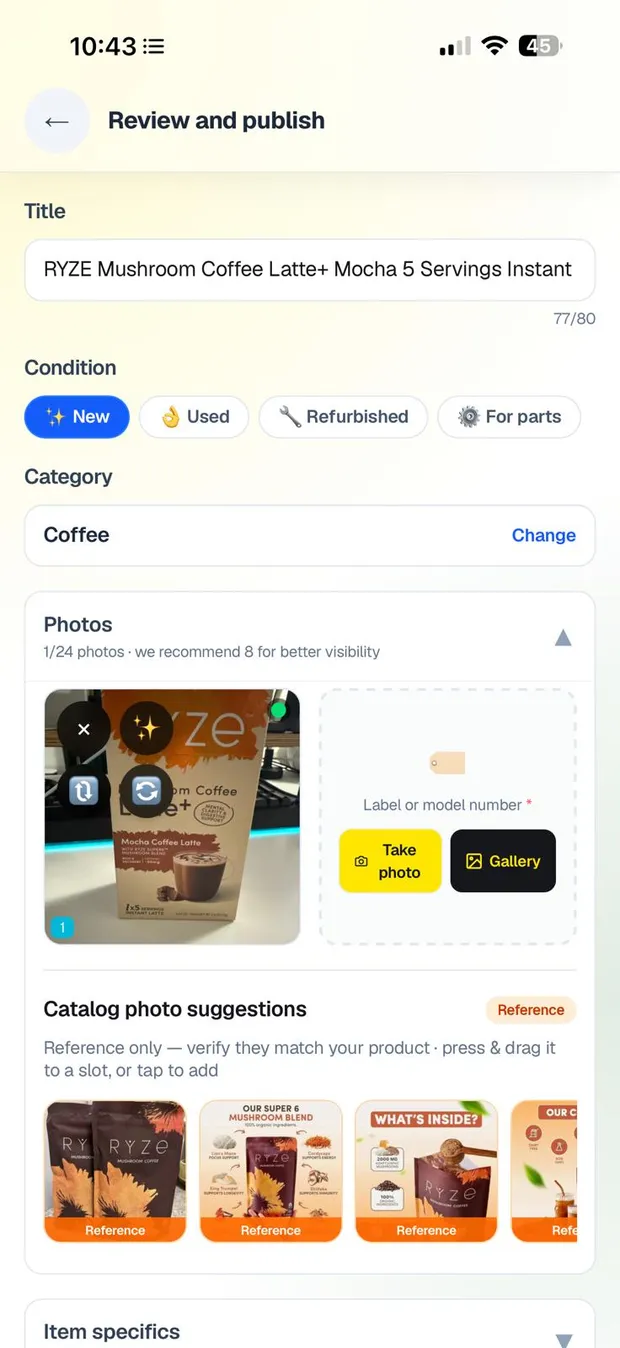
Check the consistency
Tap 🔍 Check consistency: we make sure your whole listing matches. If something's off, you fix it with one tap on the right answer — or tap ✨ Fix everything and ListBanana handles it.
Preview and publish!
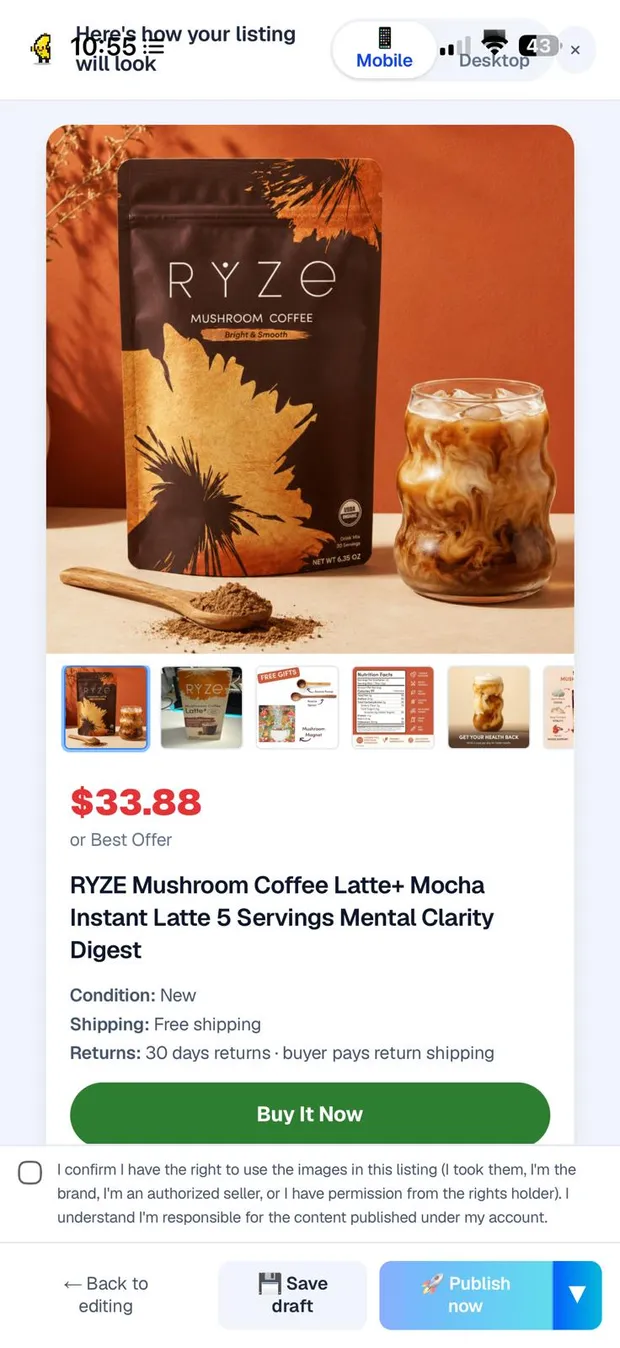
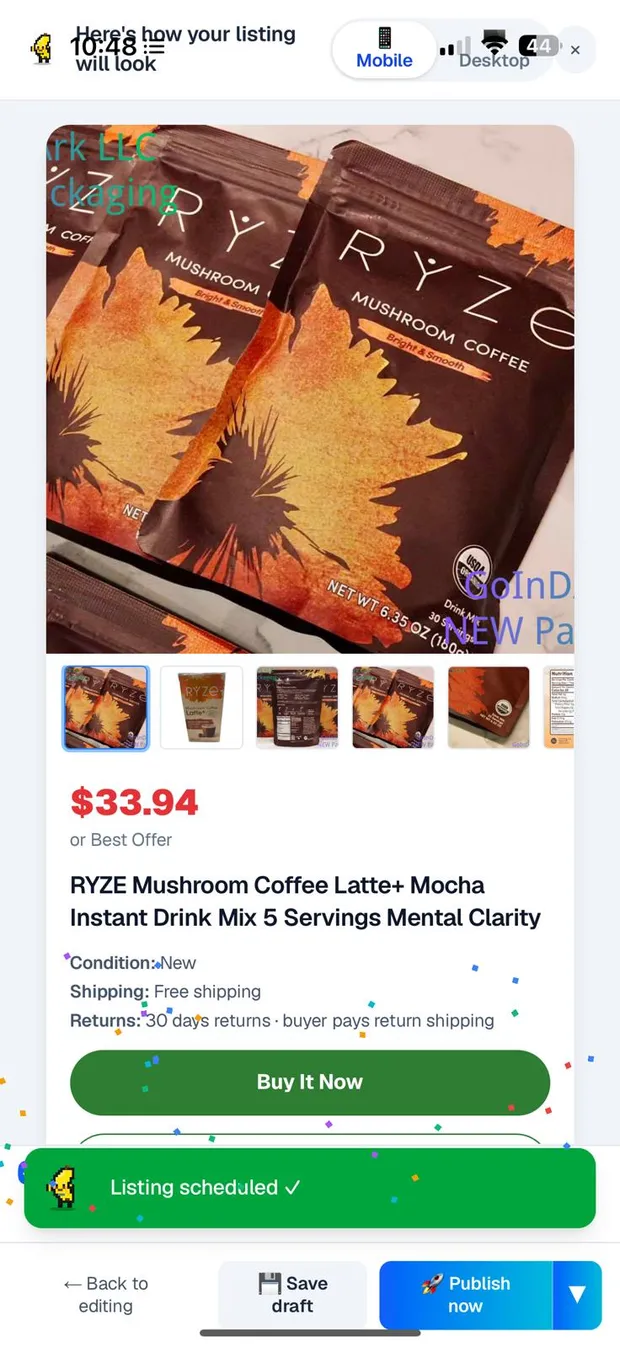
Tap 👀 See preview and see your listing the way buyers will. Check the image-rights box and tap 🚀 Publish now — or Schedule so eBay publishes it on its own at the time you choose. Published on eBay! 🎉
🎟️ When is a listing credit used?
1 credit = 1 listing generated by ListBanana. It's deducted at Step 3, when you confirm the category with "Yes, continue" — whether you publish it or not. Publishing to eBay afterwards doesn't deduct anything extra, and your counter (📊 used/limit) is always visible at the top of every screen.

Publish on Facebook Marketplace
With the Chrome extension, included in your free trial and all plans: it fills the Facebook form with your ListBanana products — you review and publish.
Desktop only · requires Google Chrome
📱 What about eBay? No extension needed: you publish 100% from your phone or computer.
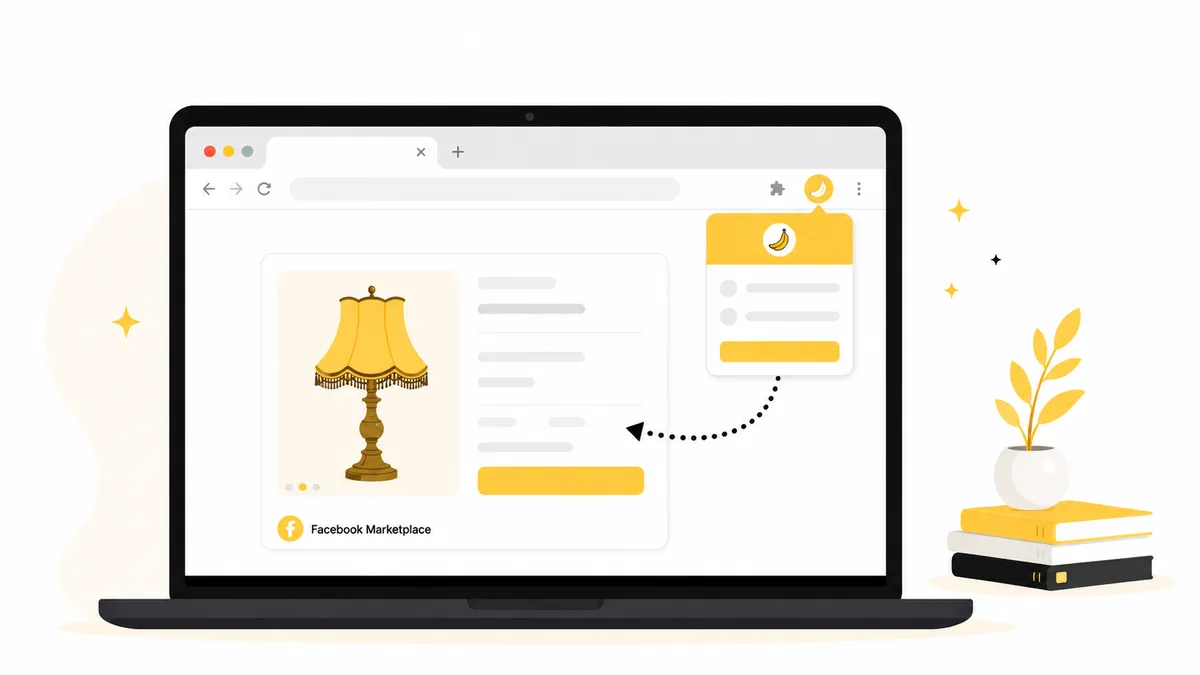
Get on a computer
The extension works on a Windows or Mac computer with Google Chrome — not on phones or tablets.
Install the extension
Open the ListBanana listing on the Chrome Web Store and click Add to Chrome. Optional: pin it to the toolbar with Chrome's puzzle 🧩 icon so it's always at hand.
Install from the Chrome Web StoreIncluded in your free trial: your 3 listings work on eBay or Facebook Marketplace. After that, it comes with every paid plan.
Copy your connection token
Sign in at listbanana.com and open the Facebook Marketplace extension page — you'll find it on your dashboard or under Settings → Platforms. Tap Copy next to your token (it starts with lmx_). It's a secret: don't share it.
Go to my extension pageConnect the extension (one time only)
Click the ListBanana extension icon in Chrome, paste the token and tap Save & connect. You'll see your list of ListBanana products.
Fill in the Facebook form
Open facebook.com/marketplace/create/item, open the extension popup, pick your product and click Fill the form. Title, price, bilingual description, condition and photos get filled in; you pick the category by hand (we leave the suggestion on screen).
You review and publish
The extension never publishes on its own: review everything, adjust whatever you want and tap Facebook's Publish button. Then reopen the popup and tap Yes, published — so your product shows its "On Facebook" badge inside ListBanana.
🧭 What comes next? Guides by situation
What happens after you create or publish your listing — every situation answered, exactly the way the app works.
I downloaded the app — now what?
- 1
Create your account with your email and a password (on a computer you can also continue with Google). You start with 3 free listings — no card and no charges when you sign up.
- 2
Connect your eBay account before your first listing: go to Settings → eBay Account and tap Connect eBay account. You sign in with eBay's official login — you never share your password with ListBanana. No eBay account? There's a link right there to create one for free.
- 3
Your dashboard greets you with the welcome checklist and the Add product button: follow the guide above and publish your first listing in minutes.
💡 You'll also get a welcome email with these first steps, so you have them handy.
See the step-by-step guide ↑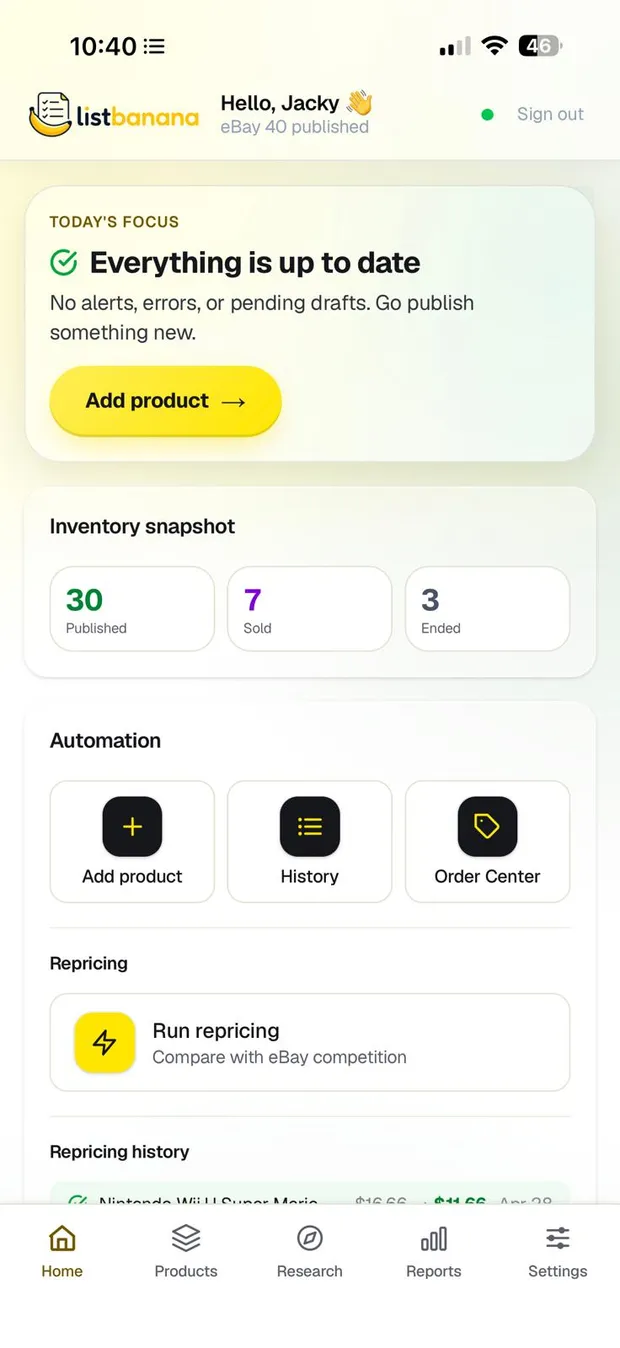
Photos: camera, gallery or files — and how to improve them
- 1
Take photo uses your phone's camera (or your computer's webcam); Upload photo opens your gallery — and on a computer, your files. ListBanana gets going with just ONE photo.
- 2
To publish you need at least 4 photos; 8 is ideal and the max is 12. The first photo is the main one on eBay: press and hold to drag it and change the order.
- 3
Remove the background: tap the ✨ button on any photo (Optimize — remove background). It applies to that photo only, and ↩️ Undo brings the original back. If the cutout wouldn't come out well, we keep your photo and give you a tip (more light, plain background…).
- 4
On a saved product you can also open a photo and tap ✨ Optimize this photo: ListBanana analyzes it and shows you Before / After ✨ so you decide with ✓ Use this photo.
💡 Improving photos never spends listing credits — use it freely.
It's published: where do I see it and how do I edit it?
- 1
In the Products tab, under the Published filter. The ↗ arrow (or the View on eBay button inside the product) takes you to the live listing.
- 2
To edit it, open the product and change the title, price, description or photos. Changes are saved in ListBanana first — the screen itself reminds you.
- 3
When you're happy, tap Publish changes on eBay: the title, price, description, photos, return policy, category, quantity, condition, item specifics and UPC update on the live listing, always with your confirmation.
- 4
Sync eBay (in the Products menu) pulls the latest from your account: what sold and what ended. It also syncs on its own from time to time.
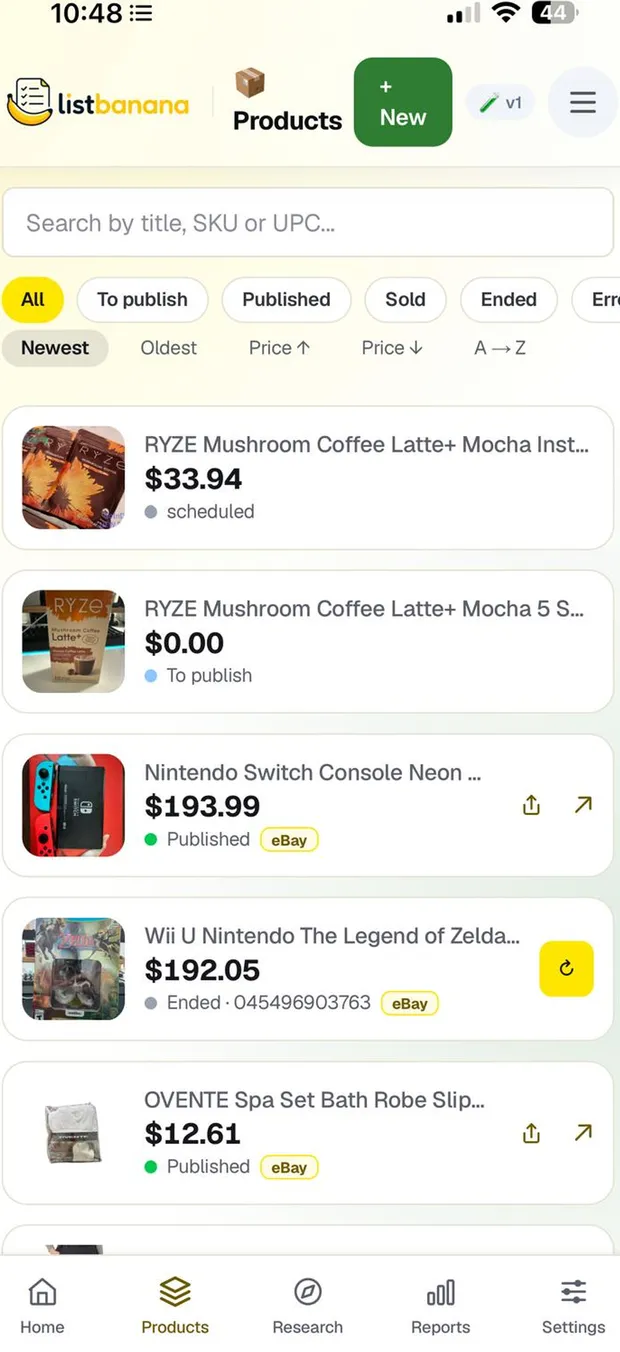
I saved it without publishing: where did it go?
- 1
Everything you don't publish stays in Products with the To publish label. And while you edit, the app keeps saving on its own — you'll see Saving… / Saved at the top.
- 2
With 💾 Save draft you save and leave without worry: your listing doesn't get lost and never expires.
- 3
To pick it up again, tap it in Products: you're back on the Review and publish screen right where you left off, and you publish with 🚀 Publish now whenever you want.
💡 Remember: the credit was used when the listing was generated. Saving it as a draft and publishing later costs nothing extra.
I scheduled it for later
- 1
With Schedule (the ▼ arrow next to 🚀 Publish now) you pick a date and time, up to 3 weeks ahead, and eBay publishes it on its own at that time — you don't need the app open.
- 2
In the meantime you'll see it in Products with the Scheduled label and its date; the Scheduled chip filters them on their own.
- 3
Changed your mind? With Cancel schedule (the 📅✕ button in the list) the scheduled listing is withdrawn from eBay and the product goes back to To publish, ready to publish now or reschedule.
My listing isn't selling — how do I improve it?
- 1
In Reports → the 📈 Velocity tab, the 🐌 Stagnant block gathers your listings with 30+ days without selling. Tap Analyze and ListBanana tells you what to improve in the title, description, price or category.
- 2
Tap ✨ Apply improvements to adopt the title and description suggestions; then open the product and tap Publish changes on eBay to push them to the live listing.
- 3
For pricing: on your dashboard, Run repricing compares your prices against eBay competition and proposes adjustments — you approve each change and the new price does update on eBay right away.
- 4
You can also turn on Auto reprice per product: choose between Just alert me or Auto-adjust, with the drop threshold you define.
It sold! Now what?
- 1
Open the Order Center from your dashboard: your eBay sales in one place, each with its status (awaiting payment, to ship, shipped).
- 2
When you ship it, tap Mark as shipped and record the carrier and tracking number.
- 3
Payments and payouts are still handled directly in your eBay account, as always.
Changing your plan or payment method
- 1
Go to Settings → Your plan. The Change plan / Cancel subscription button opens your secure billing portal, where you manage your subscription, payment method and receipts.
- 2
Your listing credits renew every monthly cycle — Settings shows how many you've used and the exact date (Resets on…). Plan credits don't carry over from month to month.
- 3
Have a promo code? The redeem box is on that same card: type the code, accept the terms and tap Redeem. The extra listings are added to your account and get used once your monthly quota runs out.
Canceling my plan (and coming back later)
- 1
In Settings → Your plan, tap Cancel subscription. The flow shows you the exact dates before you confirm: until when you keep access and from when you won't be charged again. There's no partial refund for the current month.
- 2
You keep full access until the end of the period you already paid for. Heads up: free promotional listings are lost when the subscription ends — use them before that date (the flow itself tells you how many you have).
- 3
Your account is not deleted, and everything you published stays live in your eBay account — it's yours. Your products and drafts stay saved in ListBanana.
- 4
Want to come back? Sign in, pick your plan again and continue right where you left off, with your products waiting for you. (Promotional listings that were lost aren't restored.)
💡 If you pay for your subscription through an app store, it's managed and canceled from your store's subscription settings — the app takes you to the right place from that same screen.
💬 Questions & answers
The most common questions, answered short and to the point.
Which platforms does ListBanana publish to?+
eBay and Facebook Marketplace, included in the free trial and all plans at no extra cost. On eBay you publish with one button right from the app; on Facebook Marketplace the Chrome extension fills the form for you from your computer — you review and publish.
Can I use ListBanana to list services?+
No. ListBanana is for selling physical products on eBay and Facebook Marketplace, and Facebook doesn't allow services on Marketplace. If you offer services and also sell products (parts, kits, items), you can use ListBanana for those.
What is eBay's Cassini algorithm?+
It's eBay's internal search engine: it decides which listings show up first when a buyer searches for something, which is why it determines how many views your listing gets. It rewards relevant, complete listings — a good title, the right category, item specifics, good photos and a competitive price — which is exactly how ListBanana builds every listing.
Read the full Cassini guide →Where can I use ListBanana?+
On your phone (the app is on the App Store and Google Play) or from your computer at listbanana.com. To publish on Facebook Marketplace you do need a Windows or Mac computer with Google Chrome and the ListBanana extension.
How much does it cost? Is anything free?+
You start with 3 free listings to try it for real. After that there are 3 plans based on your monthly volume: Starter $19.99/mo (15 listing credits), Basic $39.99/mo (40) and Pro $69.99/mo (100). Every plan includes the same features — only the volume changes — and billing starts only when YOU activate the plan. Every plan also has an annual version on the web with 2 months free (Starter $199.99/yr, Basic $399.99/yr, Pro $699.99/yr): one single payment for the year, non-refundable, with the same credits granted monthly.
When is a listing (credit) deducted from my plan?+
When ListBanana generates the listing: when you pick the category and tap "Yes, continue", 1 credit is deducted — whether you publish it or not. 1 credit = 1 generated listing. Publishing to eBay or filling in Facebook Marketplace afterwards doesn't deduct anything extra.
What happens if I cancel my plan?+
Nothing bad: everything you already published stays live in your eBay account — it's yours. When you cancel you only lose ListBanana's tools (listing creation, reprices, reports). Cancel anytime from Settings, your account and products aren't deleted, and if you come back you pick up where you left off.
Does it work outside the United States?+
For now ListBanana is available in the United States only: listings are published to eBay US and Facebook Marketplace US. The app itself is fully bilingual, English and Spanish.
Where do I get the extension's connection token?+
In your account: sign in at listbanana.com and open the "Facebook Marketplace extension" page (from your dashboard or under Settings → Platforms). Tap Copy and paste the token once into the extension popup. If you regenerate it, the old one stops working.
Does the extension publish to Facebook on its own?+
No — on purpose. The extension fills the form (title, price, description, condition and photos); you review everything, pick the category and tap Publish on Facebook. That way you're always in control of what goes out under your account.
Do I need an eBay account?+
Yes: ListBanana publishes TO your eBay account. You connect it with eBay's official sign-in (OAuth) — you never share your password. Sales and payments stay managed directly on eBay.
What if ListBanana gets something wrong?+
It can happen — that's why nothing is published without your approval. You review the full listing, the consistency check warns you if something doesn't match, and you can edit anything before publishing.
Can I edit a listing that's already published?+
Yes. Open it in Products, change whatever you want and tap Publish changes on eBay: the title, price, description, photos and return policy update on the live listing, always with your confirmation.
Can I save a listing and publish it later?+
Of course. Save it with 💾 Save draft (or let autosave do it): it stays in Products as To publish and never expires. Open it anytime and publish with 🚀 Publish now — no extra credits spent.
How many photos do I need, and which one is the main photo?+
ListBanana gets going with just ONE photo. To publish you need at least 4, 8 is ideal and the max is 12. The first one is the main photo on eBay: drag your photos to change the order.
Can I remove the background from my photos?+
Yes: tap ✨ on the photo and ListBanana removes the background and puts it on a clean professional white. There's Undo to get the original back, and it doesn't spend listing credits. If the cutout wouldn't come out well, we keep your photo and give you a tip.
What happens when I sell something?+
Your sale shows up in the Order Center, where you mark it as shipped with its tracking number. You get paid directly in your eBay account, as always.
Where do I redeem a promo code?+
In Settings → Your plan → "Have a promo code?". Type the code, accept the promotional listings terms and tap Redeem. Heads up: those extra listings are lost if your subscription ends.
I canceled my plan — can I come back?+
Yes, whenever you want: sign in, pick your plan and continue where you left off. Your account and products are still there, and what you published on eBay never stopped being yours.
🔎 Why do some listings get seen more than others?
eBay's search algorithm (Cassini) decides which listings show up first. We explain how it works and how ListBanana builds every listing to give you more chances of being found.
Start with 3 free listings
Create your first listing today: one photo, ListBanana does the rest and you approve. List in minutes.
Create my first listing 🍌